Embeds, bookmarks & link mentions
Hoppsan! Det verkar som om din annonsblockerare hindrar videon från att spelas upp.
Titta på den på YouTube

You can embed virtually any online content within Notion pages — from video and audio players to Tweets, Loom videos, Invision mockups, and entire Miro boards. Enrich your Notion pages with other apps, PDFs, forms, and interactive maps 🦾
Click the
+that appears to the left when you hover over a new line. ChooseEmbedor one of the common embed types listed above. Pressenter.In the menu that appears, paste the content's URL or embed link.
You can also use
/embedto upload and display your own image, audio, video, or file. Just selectUploadand choose the file from your computer.

Note: Some websites prohibit their content from being embedded elsewhere. If you receive a Failed to Load error, that's why.
Notion allows you to embed external content from over 1,900 domains via the Iframely service. This enables you to bring videos, screencasts, slide decks, images, audio, code repositories, and more into your Notion pages, so that you can keep all context in one place. As needed to display embedded content, Iframely and the embedded app may receive the IP address of the content's viewers.
Here is a selection of some of the commonly used apps that you can embed into your Notion pages:
Abstract | Canva |
CodePen | Excalidraw |
Flocus | |
Framer | Indify |
Invision | |
GitHub Gist | GIPHY |
Google Maps | |
Loom | Miro |
Mixpanel | |
Replit | |
Sketch | Streamlit |
Slideshare | Spotify |
Tableau | Tally |
TikTok | |
Typeform | Vimeo |
Widgetbox | YouTube |
While pretty much any online content can be embedded on a page, Notion also has preconfigured embed blocks for some of the commonly used media types (e.g., File, Image, PDF, Video) and apps (CodePen, Loom, Miro, Tweet).
These can be added specifically from the / menu or by clicking + in the left margin that appears when you hover over a new line. Try it out by typing /tweet to embed a Tweet, or /maps to embed an interactive Google Map.
Note: Embeds that require login to an external site will not work on Notion's desktop app or mobile apps.
Supported file types
In Notion, you can embed:
HTML files
PDF files
Audio
Video
Images
Turn a URL into an embed
In most cases, Notion will recognize an embeddable URL when you paste it into your page. You can also paste copied images.
Paste the embed URL provided by the content's source.
For example, this should start with
httpsnot<iframe.
In the menu that appears, select
Paste as bookmark.
Resize and arrange embeds
Most embeds can be resized to suit their content and the format of your page.
Hover your mouse over your embed, then drag the black bars that appear on the sides.
Use drag-and-drop to move embeds around your page. Hover over the embed in question, then use the
⋮⋮icon that appears as a handle to drag it.You can also drag and drop embeds into columns.
Go to an embed's source
It's easy to link back to where the embed came from.
Hover over your embed and click
Original. Your browser will take you to its source.You can also hover over the embed and click
⋮⋮on the left or•••at its top right corner.Select
View Originaland your browser will open to the source page.
Replace embedded content
As your project evolves, you'll likely need to update embedded content. You can replace both content you've embedded from elsewhere online, or content you've uploaded in order to embed and display it on your page.
Hover over the embed and click
⋮⋮on the left or•••at its top right. ChooseReplace.When prompted, choose
Embed linkorUpload.Paste the new URL from the online service, or select the new file.
Note: If the source of your embed changes in any way, that change will appear in Notion too.
Bookmarks are one way to incorporate web links into your Notion page. They appear like distinct blocks with the page title, description and URL displayed.
Copy and paste the URL.
In the menu that appears, select
Paste as bookmark.
Link mentions are another way to incorporate links into your Notion page. They appear inline, similar to text, and are more subtle than bookmarks.
Copy and paste the URL.
In the menu that appears, select
Paste as mention.
Note: On Enterprise Plans, the following can be restricted to workspace owners:
The ability to add connections and decide who can connect or disconnect them at the page level.
The ability to install workspace-wide security and compliance connections.
Integrate with Zoom
We now support Zoom meeting link previews in Notion and managing weekly Zoom meetings in calendar view. For projects with recurring Zoom invites, you can preview meeting URL information and join meetings straight from Notion.
Paste a Zoom meeting link URL into a Notion page.
Similarly to other link previews, you'll have to authenticate the app the very first time you paste a corresponding link in Notion. Click the
Connect to Zoom to updatebutton to open the authentication window and grant the necessary permissions.You’ll have the option to
Paste as mentionorPaste as preview.
At any time, you can uninstall the Zoom app by navigating to Settings → Connections and selecting Delete.
Embed from Google Drive
You can search your Google Drive from inside Notion and embed content without having to navigate away from the app. Here's how:
Click the
+that appears to the left when you hover over a new line. Scroll and chooseGoogle Drivefrom the menu.You can also type
/driveand pressenter.A block will appear with a pop-up menu where you can either paste the URL to the Google Doc or Sheet you want to embed, or you can click
Browse Google Driveto search your Drive for the right file.You can connect multiple Google accounts to embed files from multiple Google Drives.
Embed a Google Calendar
You can embed a view-only Google Calendar into Notion if the Gmail address you use for your calendar is the same one you use for Notion.
Under
My calendars, click on the⋮next to the calendar you'd like to embed and chooseSettings and sharing.Under
Access permissionscheckMake available to publicwithSee all event detailsselected.Under
Integrate calendar, copy the URL in the box labeledPublic URL to this calendar:Paste that URL into Notion and select
Create Embedfrom the menu that appears.
Integrate Slack

Looking for our Slack integration? Click here!
As an individual user, you can manage your account authentications for connected apps at any time.
Go to
Settingsin the sidebar →Connections. Here, you'll see all of the apps you've authenticated for link previews or embeds, as well as other apps that you haven't connected yet!Click
Show allat the top right to see additional app options.For each app, you'll see several options: You can
Connectthe app for the first time. This redirects you to the app, where you'll be able to authenticate the connection to Notion.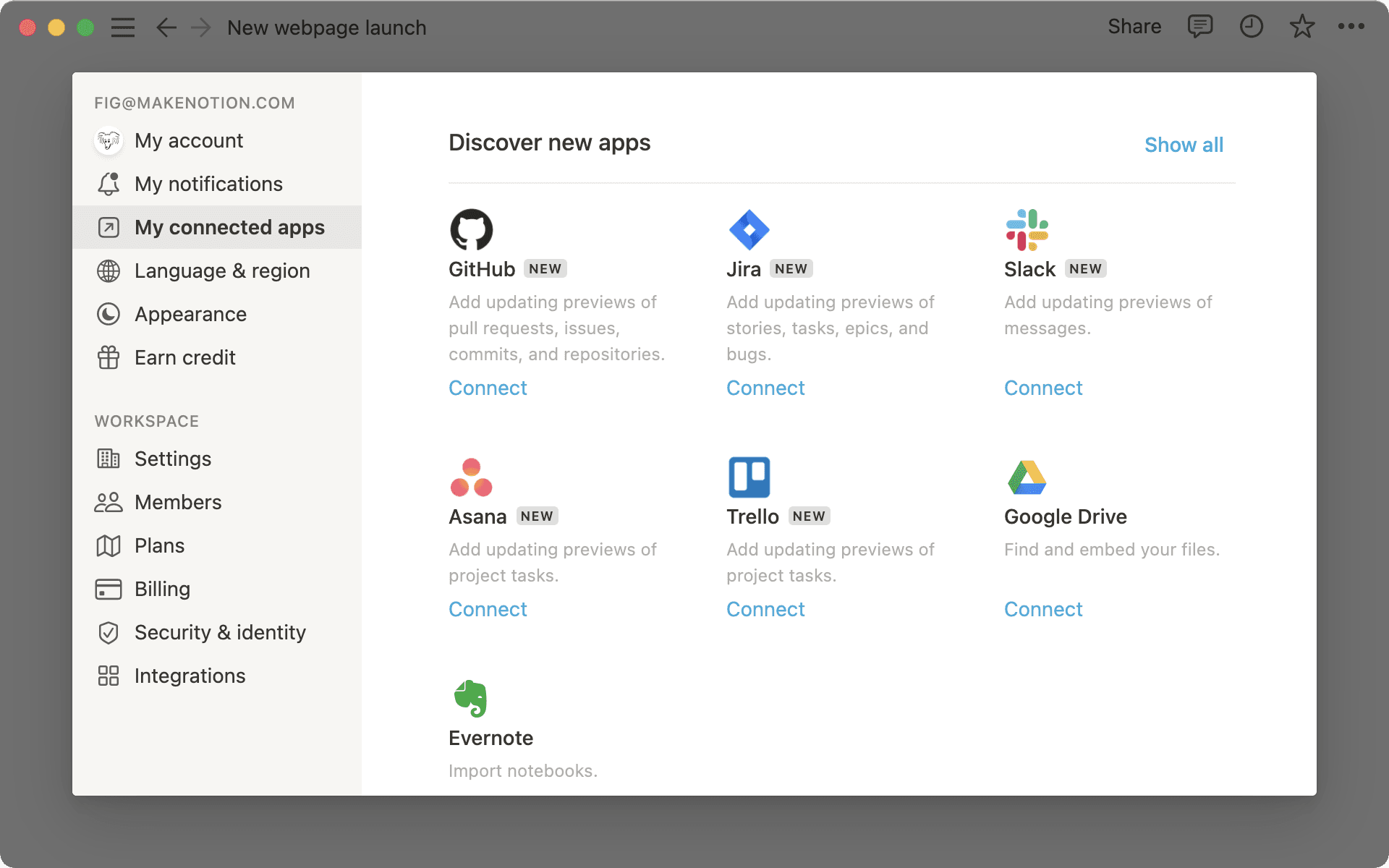
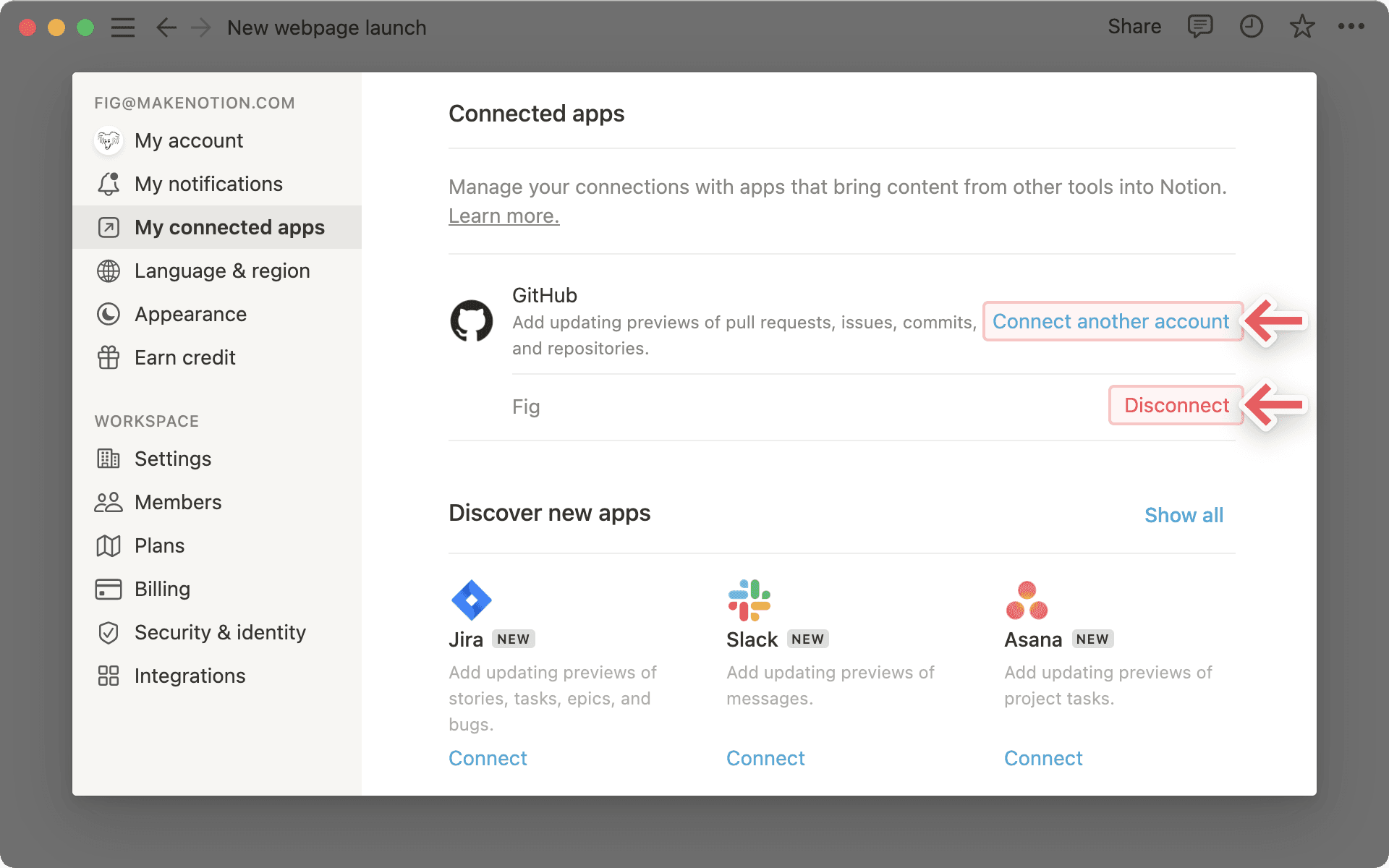
Once you've connected an account, it will show up below the app icon and name. Now, you can
Connect another accountorDisconnectan existing account.
To manage app connection settings on a workspace level, workspace owners will need to restrict permissions directly with each platform's settings. Below, we've linked documentation for each of our current connected apps:
Note: All third-party embeds and connected apps adhere to our privacy policy, which can be found here →